

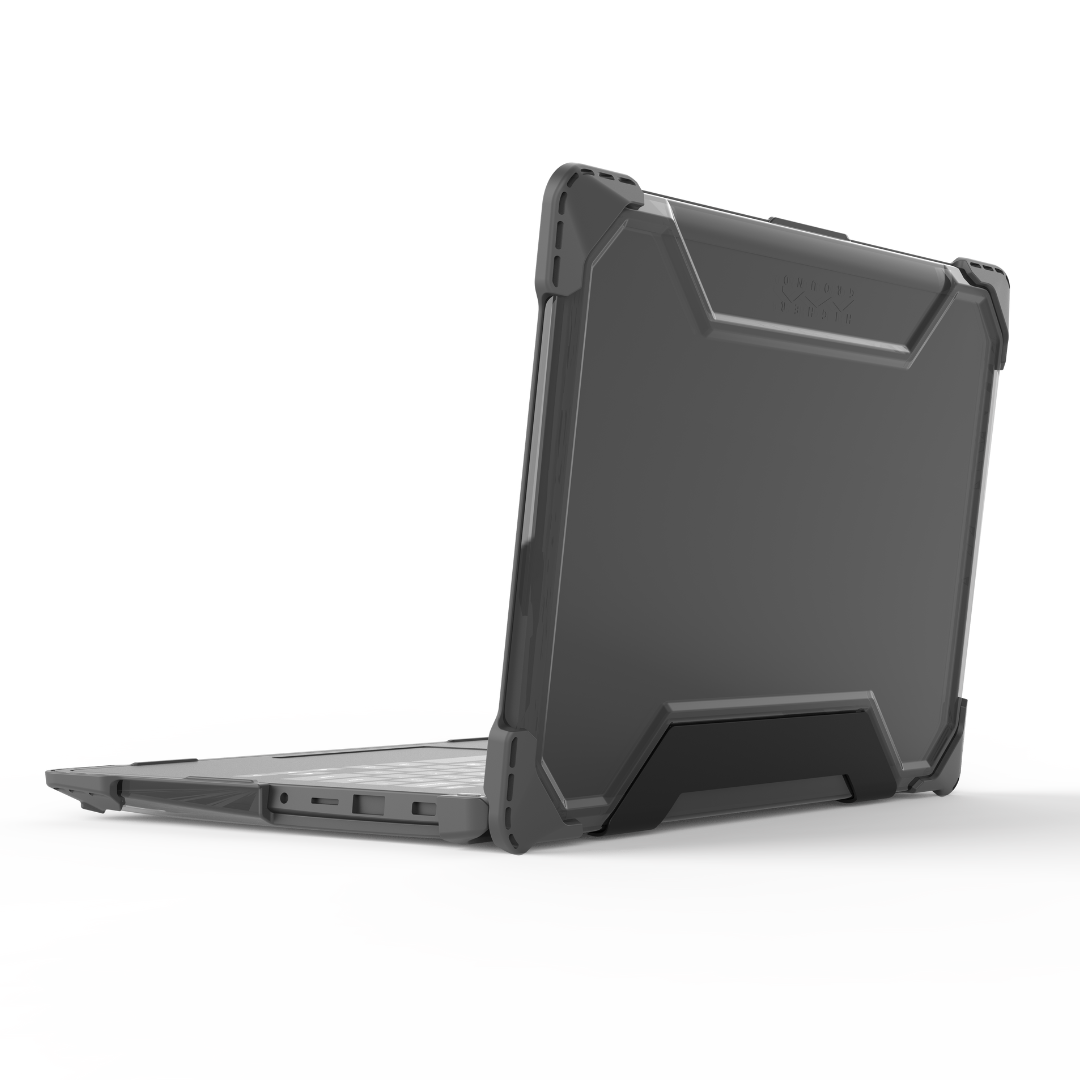
ShockGUARD Chromebook HPG9
Extreme Protection for HP G8EE / G9EE
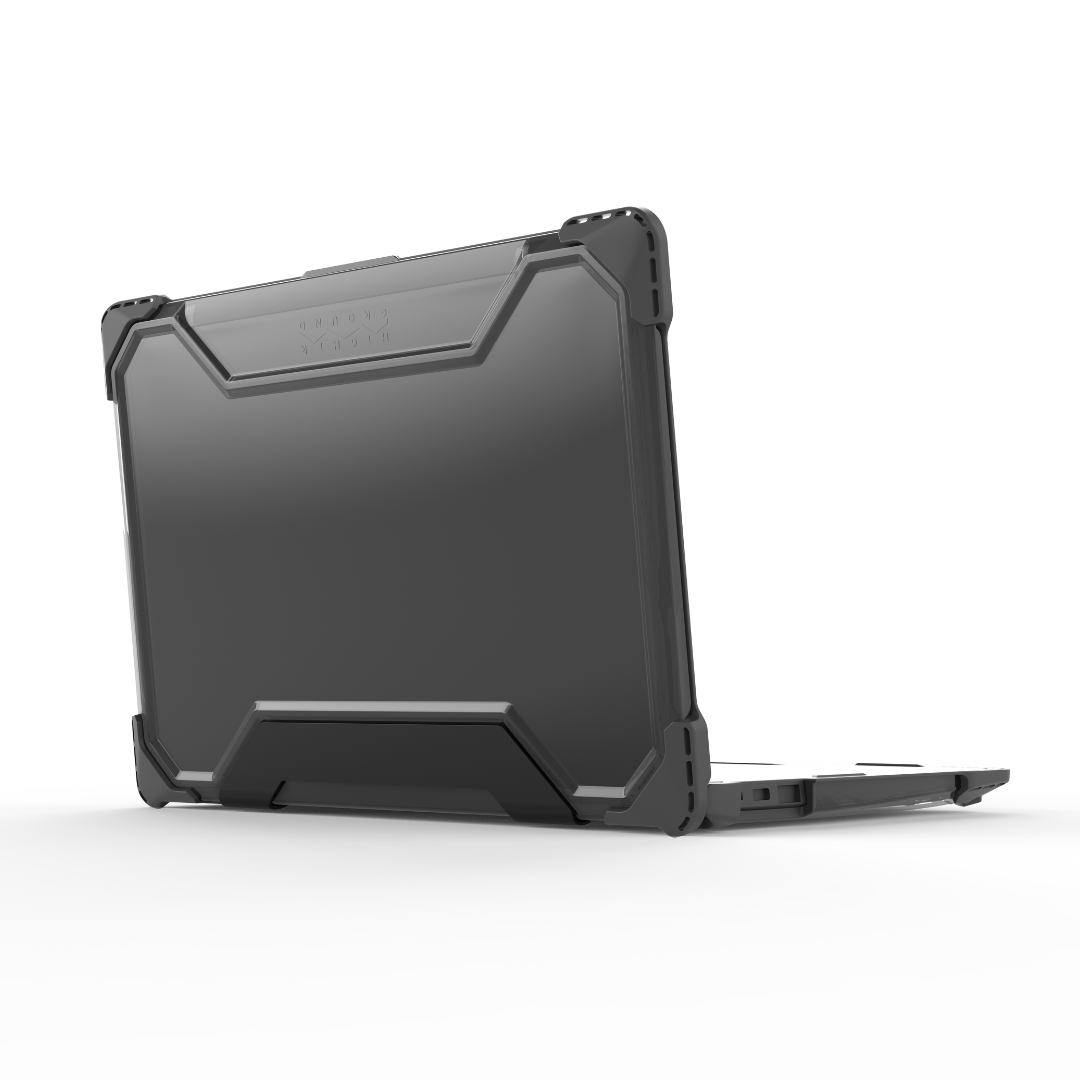
Built specifically for the HP Chromebook G8EE and G9EE, the Higher Ground ShockGUARD case helps schools protect their Chromebook fleet from everyday accidents. The rugged yet lightweight design shields devices from drops and impacts without adding unnecessary bulk, making it ideal for classroom use and one-to-one learning programs.
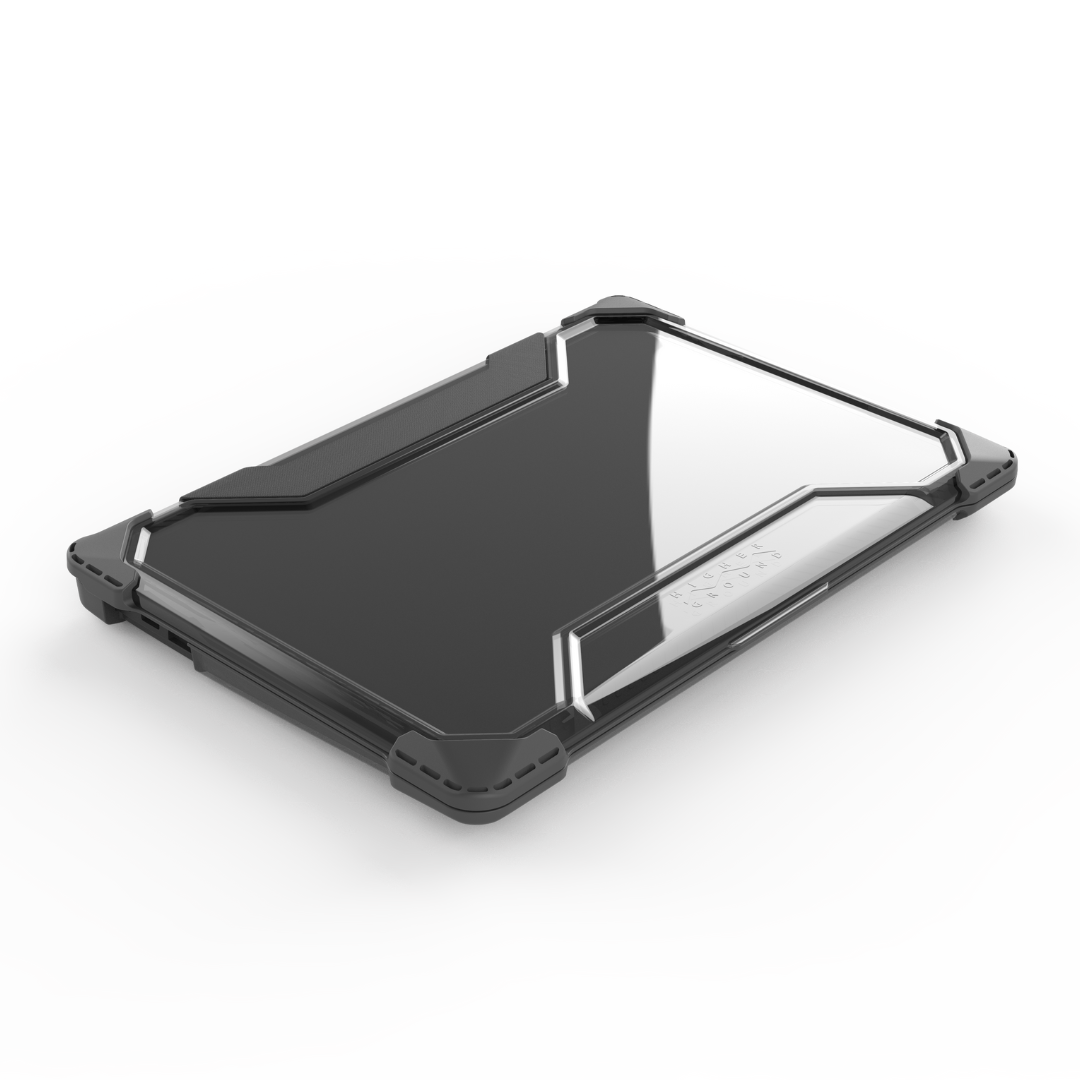
The shock-absorbing TPU interior works together with a durable polycarbonate shell to disperse impact energy and help prevent damage. With integrated cooling vents, generous access to charging ports, and a transparent back for school asset tags, ShockGUARD is built for the needs of modern education.
Features:
- Precision-engineered for the HP G8EE & G9EE for a secure, reliable fit.
- Dual-layer protection combines a rugged polycarbonate shell with a shock-absorbing TPU interior.
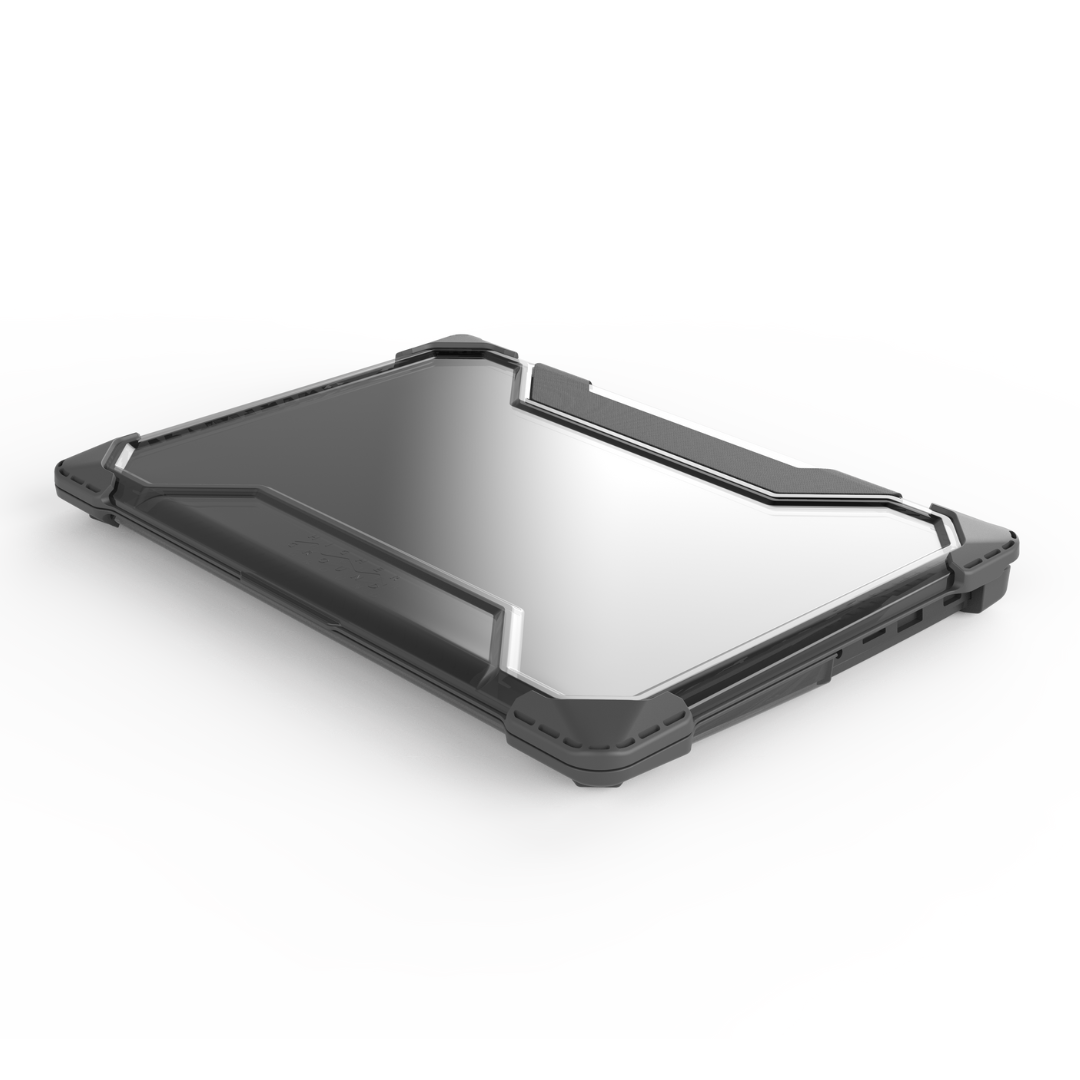
- Reinforced corners help protect the areas most vulnerable to everyday drops and impacts.
- Slim, lightweight design fits easily into backpacks, charging carts, and classroom storage.
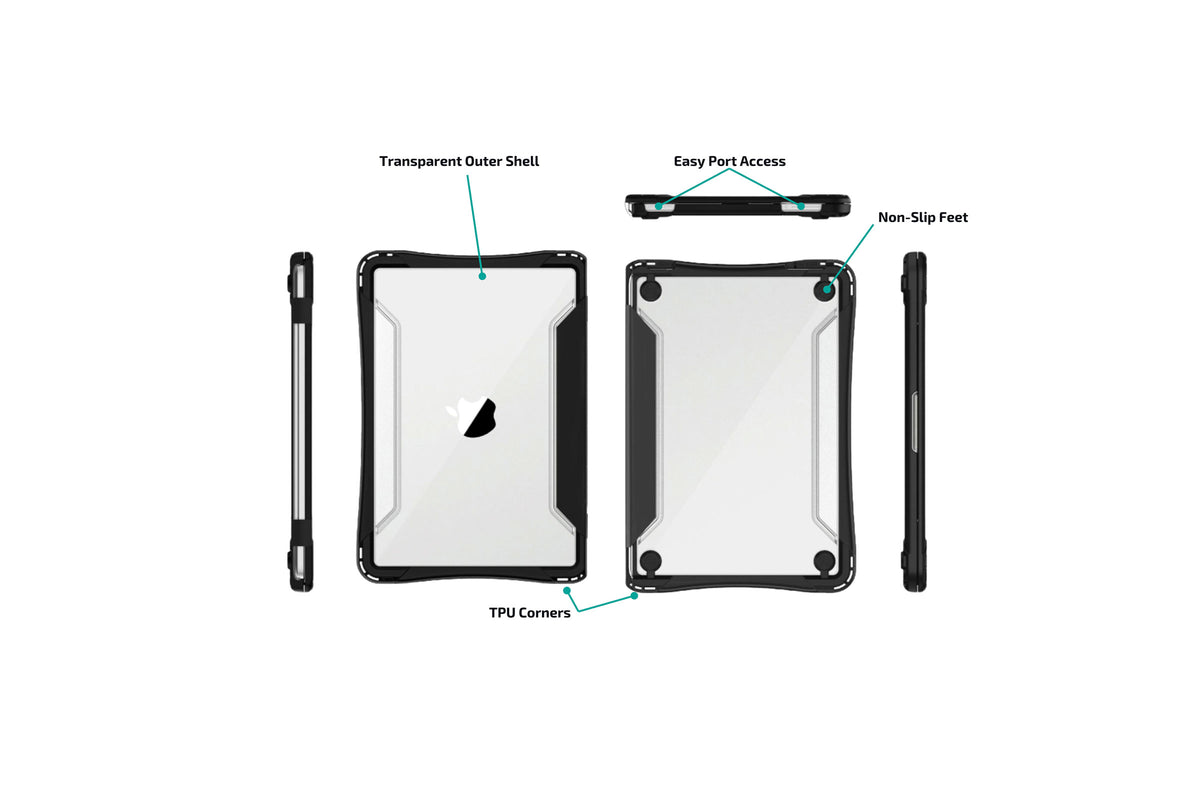
- Transparent top shell keeps school logos and asset tags visible for fast identification.
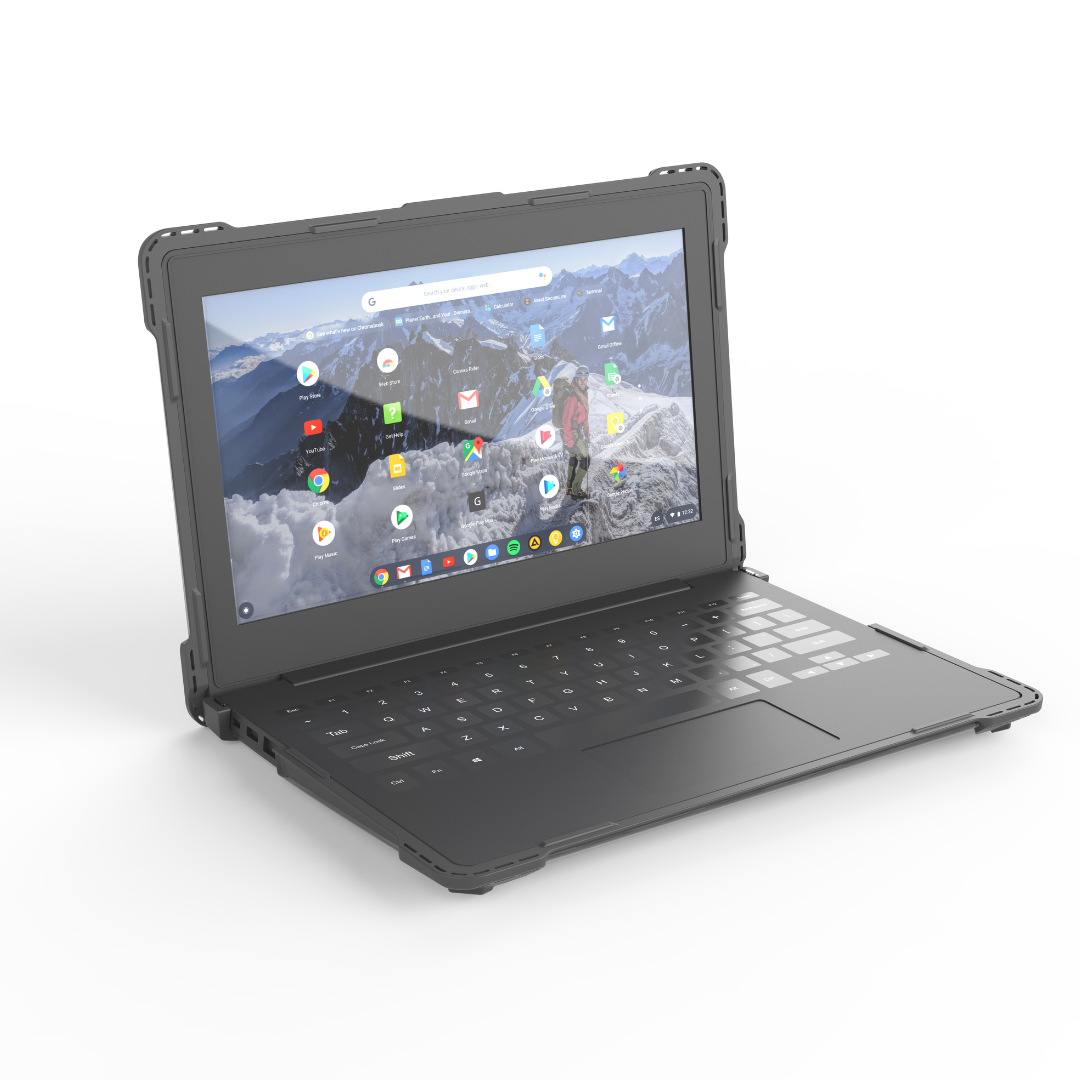
- Full access to ports, buttons, cameras, and speakers without interfering with everyday use.
- Integrated ventilation promotes airflow to help keep devices running cool during extended use.
SKUs:
- SGHPG9 - Fits HP G8EE & G9EE
- Style:
- HP G8EE & G9EE
Pairs well with
Add AssetGuard accidental protection
In stock items ship within 1-2 business days.
$5 flat rate shipping (full carton orders excluded)
Lifetime Warranty
Product details
Construction
- TPU for shock absorption
- Poly Carbonate transparent shell
- non-slip TPU feet
- Top and bottom parts are attached for easier installation and orientation
Features & Benefits
- Precision-engineered for your device for a secure, reliable fit.
- Dual-layer protection combines a rugged polycarbonate shell with a shock-absorbing TPU interior.
- Reinforced corners help protect the areas most vulnerable to everyday drops and impacts.
- Slim, lightweight design fits easily into backpacks, charging carts, and classroom storage.
- Transparent top shell keeps school logos and asset tags visible for fast identification.
- Full access to ports, buttons, cameras, and speakers without interfering with everyday use.
Usage
- Efficient and affordable Always-On Protection
- Slim design slips easily into backpacks
Installation Guide:
- Remove protective film.
- TPU hinge provides quick visual reference point for case orientation prior to installation. (side with cut out edges is the bottom for port access)
- Insert the bottom first, pressing the device toward the front corners before snapping the rear bottom clips into place.
- With the laptop closed and on a desk, now fold the lid side over the laptop and gently press around only the perimeter’s edges until it fully clicks into place.
- Visual inspect.
- All set!

Engineered to Take the Hit.
ShockGUARD combines oversized corner bumpers, a rigid polycarbonate shell, and an engineered internal impact system to help protect devices where they're most vulnerable, so students can learn with confidence and schools can extend the life of every deployment.
If you have any questions, you are always welcome to contact us. We'll get back to you as soon as possible, within 24 hours on weekdays.
-
Shipping Information
Use this text to answer questions in as much detail as possible for your customers.
-
Customer Support
Use this text to answer questions in as much detail as possible for your customers.
-
FAQ’s
Use this text to answer questions in as much detail as possible for your customers.
-
Contact Us
Use this text to answer questions in as much detail as possible for your customers.
Engineered From the Inside Out.
Unlike most hard-shells that simply add bumpers to a rigid exterior, ShockGUARD manages impact in layers, absorbing, dispersing, and cushioning energy before it reaches the device. A specialized TPU liner cushions the device from the inside while oversized TPU corner bumpers absorb the initial force of an impact. Together, these layers help reduce the energy transferred to the device during everyday drops and bumps.
Protection That Goes Beyond the Shell
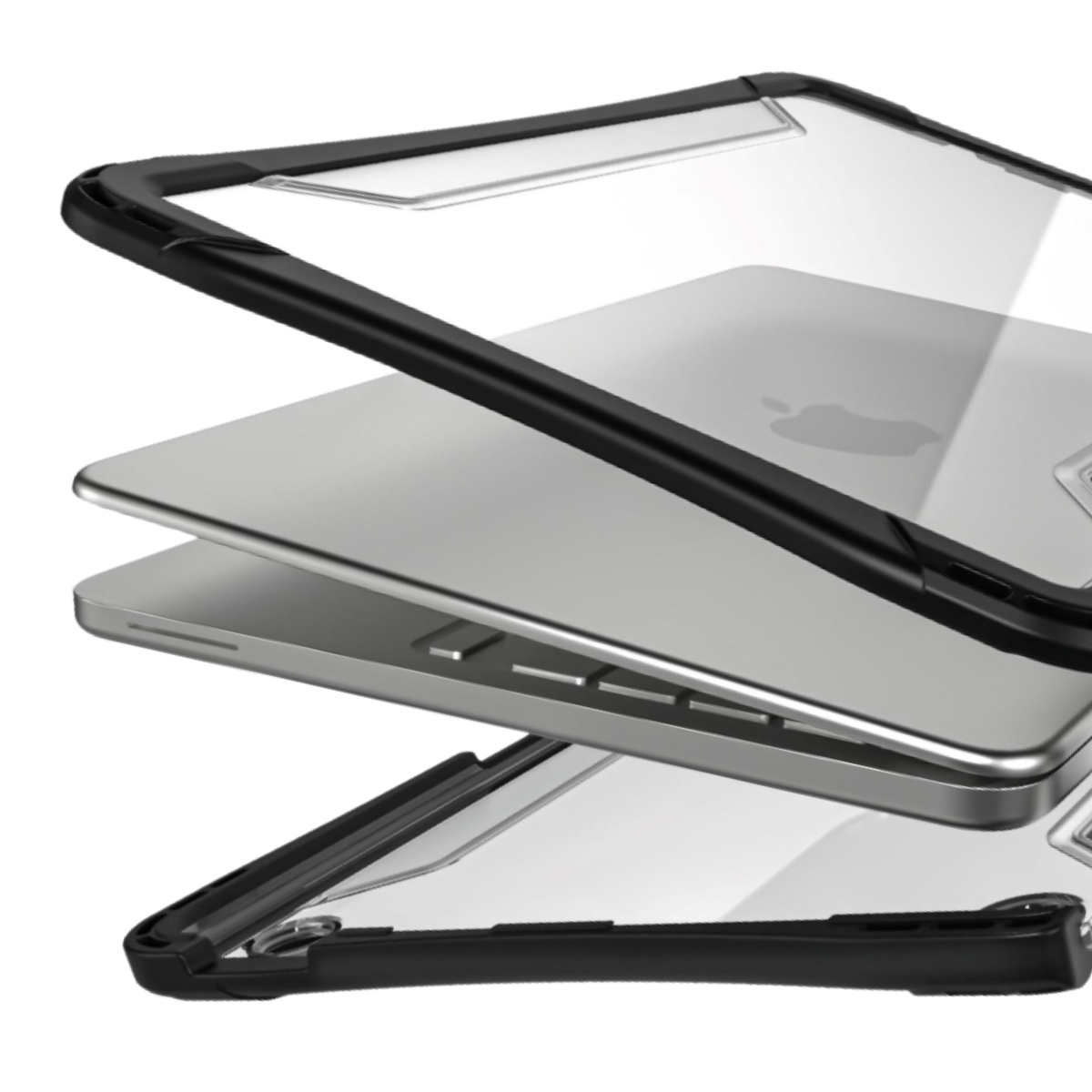
Protection Starts on the Inside
Most shells only place TPU on the outside corners. ShockGuard adds an additional layer inside the shell, between the hard shell and the device for added protection.
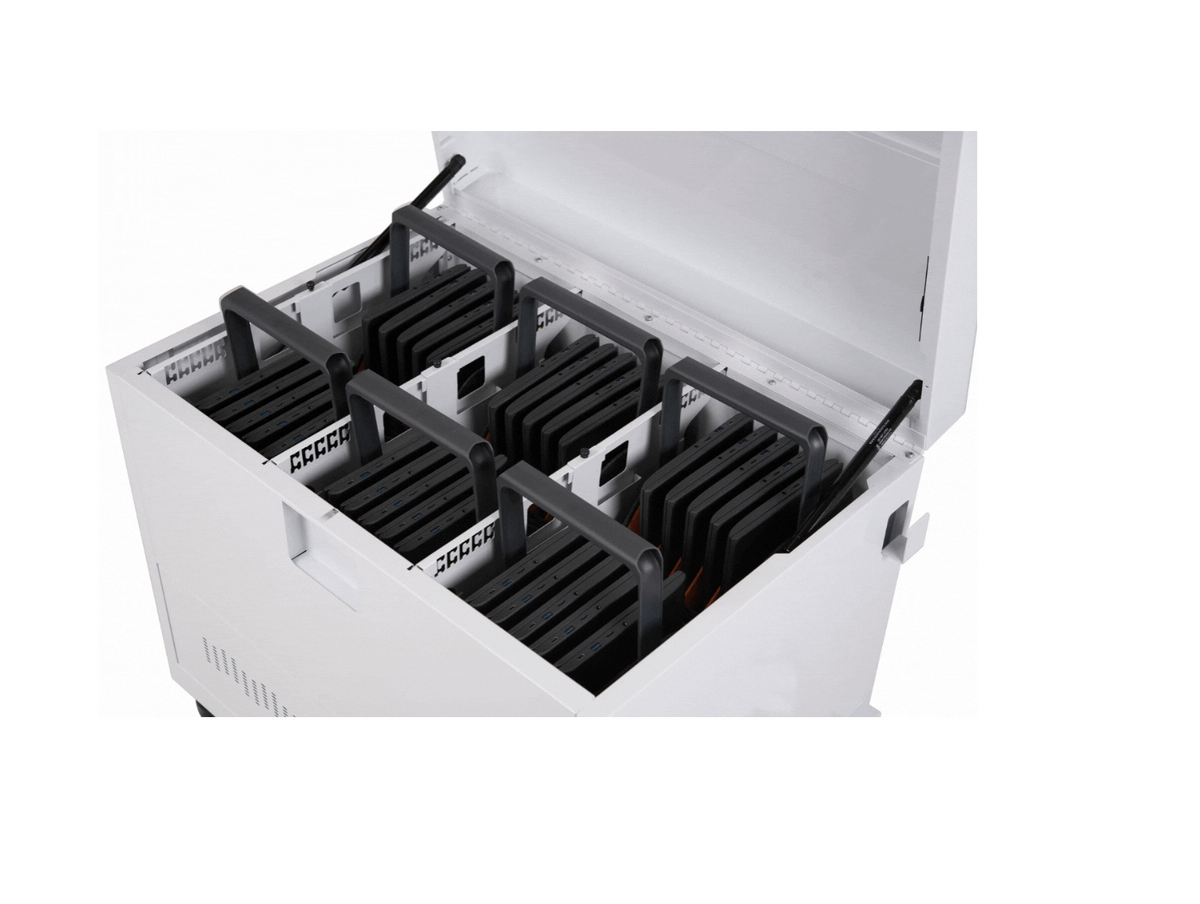
Great for Carts
Slim design fits in most universal carts and slides easily into backpacks.
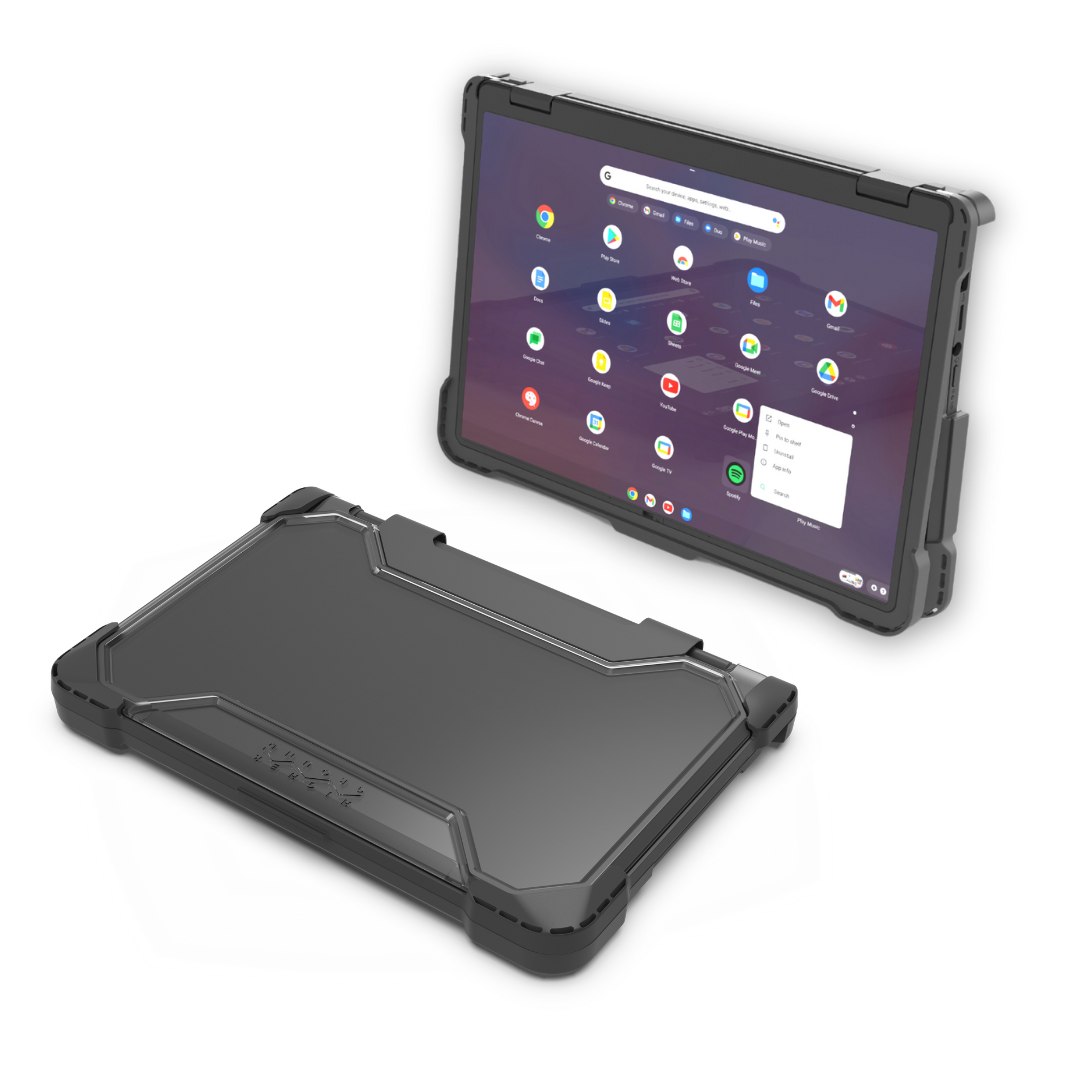
Built Specifically for Your Device
Every ShockGUARD case is precision-engineered for the device it protects, ensuring a secure fit, unrestricted access to ports, and seamless everyday use.